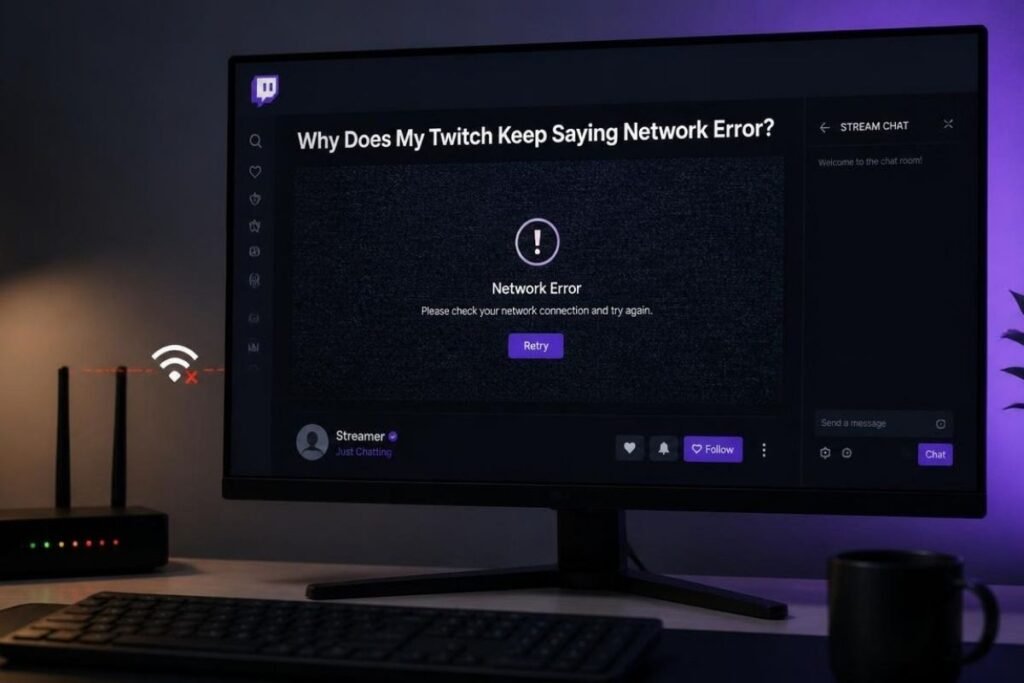

A Twitch network error usually means the video stream is not loading properly between Twitch and your device. The cause can be your internet connection, browser, Twitch app, VPN, browser extensions, or a temporary Twitch service problem.
If the error is Twitch Error 2000, Twitch identifies it as a playback issue that can be related to an unstable connection, router or modem problems, or browser extensions.
Before changing advanced settings, check whether every Twitch stream is affected. If one channel fails while other streams work, the problem may be limited to that broadcast. If every stream fails, test Twitch in another browser or on another network. This quickly shows whether the problem is coming from your device, your connection, or Twitch itself.
Quick Breakdown
- Twitch network errors are often linked to an unstable connection or browser issue.
- Error 2000 specifically points to problems delivering Twitch video over your network.
- Incognito mode can quickly reveal whether an extension or stored browser data is involved.
- If Twitch fails across devices and networks, check Twitch status before changing settings.
- One failing stream does not always mean your internet is the problem.
Check Twitch Status Before Changing Anything
Start with Twitch’s official status page.
It shows separate service states for areas such as:
- Web
- Login
- Chat
- Video watching
- Video broadcasting
This is useful because Twitch can have a problem with one service while other parts of the platform continue working. The official status page also lists previous incidents and their resolution status.
If Twitch reports an active incident affecting video or web access, changing your DNS or reinstalling the Twitch app is unlikely to solve a Twitch side outage.
Test Another Twitch Stream
Open a different live channel before changing your network settings.
If one stream fails but several others play normally, the problem may be connected to that specific broadcast rather than your device.
Twitch explains that individual streams can have playback problems because of broadcaster settings such as high bitrate, encoder configuration, keyframe settings or an unstable upload connection.
This gives you a simple test:
| What happens | What it suggests |
|---|---|
| One stream fails | Possible broadcaster or stream issue |
| Every stream fails | Network, browser, device or Twitch issue |
| Twitch fails but other sites work | Twitch or Twitch connection path |
| Twitch and other sites fail | General internet problem |
| Twitch works on another network | Current network may be involved |
| Twitch works in Incognito | Extension or browser data may be involved |
Refresh Twitch and Restart the App
Start with the simplest fix.
On a browser:
- Refresh the Twitch page.
- Close the tab.
- Open Twitch again.
- Try another stream.
On the Twitch mobile app:
- Fully close the app.
- Open it again.
- Try another channel.
Twitch recommends refreshing the page or restarting the app as part of its general troubleshooting process.
If the error returns immediately, move to the connection tests instead of repeatedly refreshing.
Check Whether Your Internet Connection Is Stable
A fast internet plan does not guarantee a stable connection.
Twitch video needs a consistent connection between your device and Twitch. Twitch currently lists recommended download speeds ranging from about 0.7 to 1.5 Mbps for 360p up to 9 to 18 Mbps or higher for 1440p60. These are recommended viewing speeds rather than a guarantee that a stream will play without interruption.
For example, you may have a 100 Mbps plan but still experience Twitch errors if your Wi-Fi connection repeatedly drops packets or your connection becomes unstable.
Check whether:
- Other websites are loading normally
- Other streaming services work
- Your connection drops during the stream
- The problem happens on both Wi-Fi and Ethernet
- Other devices on the same network experience similar problems
Restart Your Router and Modem
If your internet connection appears unstable, restart your networking equipment.
Twitch specifically recommends restarting the modem and router for Error 2000 troubleshooting. Its guidance says to disconnect the equipment for about 30 seconds before reconnecting it.
After the connection returns, open Twitch again and test the same stream.
If Twitch works normally afterward, the issue may have been related to a temporary router or modem connection problem.
Set Twitch Video Quality to Auto
If the stream loads but repeatedly stops and shows a network error, check the player quality setting.
Twitch recommends using Auto quality when dealing with Error 2000. Auto allows Twitch to adjust the video quality according to current network conditions instead of forcing a quality level your connection may not consistently support.
For example, forcing 1080p60 on an unstable connection can create more playback problems than using Auto.
This is especially useful when:
- The stream starts normally
- Playback works for a short period
- The video repeatedly buffers
- The network error appears during playback
Try Twitch in Incognito Mode
If you are watching Twitch through Chrome or another browser, open a private browsing window.
This is a useful diagnostic test because your normal browser session may contain extensions, cookies and cached data that affect Twitch.
Twitch specifically recommends trying an Incognito window with extensions disabled when troubleshooting playback errors.
If Twitch works in Incognito
The problem may be connected to:
- An ad blocker
- A privacy extension
- A script blocking extension
- Corrupted cookies
- Cached website data
- Another browser setting
You can then investigate your normal browser instead of changing your entire network.
Disable Browser Extensions
Browser extensions can interfere with Twitch playback.
Twitch specifically lists browser extensions among possible causes of Error 2000 and recommends disabling them during troubleshooting.
Ad blockers are particularly worth testing because they can modify how pages and media requests are handled.
Disable extensions temporarily and reload Twitch.
If the network error disappears, enable your extensions one at a time. This makes it easier to identify the extension causing the conflict.
You do not need to permanently disable every extension. The goal is to find the one affecting Twitch.
Clear Twitch Cache and Cookies
Old browser data can cause problems when a website changes its scripts or stored session information.
If Twitch works in Incognito but not in your normal browser, clearing cached data and cookies is a reasonable next step.
Twitch recommends clearing cache and cookies as part of browser troubleshooting and also recommends testing another browser when problems continue.
After clearing the relevant data:
- Close Twitch.
- Restart the browser.
- Open Twitch again.
- Sign in if necessary.
- Test another live stream.
If the same network error appears in multiple browsers, browser cache is less likely to be the main cause.
Update Your Browser
An outdated browser can cause compatibility problems with modern streaming features.
Twitch recommends using supported and current browser versions and specifically advises users to update their browser when troubleshooting website problems.
Update your browser and restart it before testing Twitch again.
If you use a less common browser, try Chrome, Firefox or the latest Microsoft Edge as a comparison.
This can quickly tell you whether the problem is tied to one browser.
Turn Off Your VPN Temporarily
A VPN can change the network route between your device and Twitch.
That does not mean VPNs always cause Twitch errors. It means the VPN adds another part of the connection that is worth testing.
Twitch recommends logging out of VPN software or other software that redirects requests through a different IP address when troubleshooting browser problems.
Try Twitch without the VPN and compare the result.
If Twitch works without it, the issue may involve the VPN server, routing or network configuration.
Try a Different Network
This is one of the most useful tests because it separates your current network from the rest of the Twitch connection.
For example:
- Switch from home Wi-Fi to a phone hotspot
- Try another Wi-Fi network
- Test an Ethernet connection if available
Twitch specifically recommends testing another network when investigating playback problems.
What the result means
If Twitch works on a different network, your original connection becomes the main area to investigate.
Possible causes include:
- Router problems
- ISP routing
- DNS problems
- Network filtering
- Wi-Fi instability
- VPN or proxy configuration
If Twitch fails on both networks, look at the browser, device or Twitch service next.
What If Twitch Works on My Phone but Not My Computer?
This usually points toward the computer or its browser rather than your entire internet connection.
Try Twitch on the computer using:
- A private browsing window
- Another browser
- Disabled extensions
- Cleared Twitch site data
- An updated browser
If Twitch works normally on your phone while both devices use the same Wi-Fi, your general internet connection is less likely to be the only cause.
The difference could be a browser extension, local security software, browser configuration or another device specific setting.
What If Twitch Works for Everyone Except Me?
Your friend being able to watch Twitch does not automatically rule out a network problem on your side.
Twitch notes that two people using the same household network can still have different device and network settings that affect playback.
Compare the following:
- Same Twitch channel
- Same network
- Same browser
- Same device type
If another device works on the same connection, focus on your original device.
If every device on your network fails while Twitch works elsewhere, investigate the router, ISP or network route.
What If You Keep Getting Error 2000?
If the message specifically shows Error 2000, treat it as a network and playback troubleshooting issue.
Twitch lists these common causes:
- Slow or unstable internet
- Router or modem connectivity problems
- Browser extensions
Its recommended troubleshooting includes checking connection stability, restarting the modem and router, setting video quality to Auto, disabling extensions and testing Twitch in Incognito mode.
Work through those checks before changing advanced DNS settings.
When DNS Is Worth Checking
DNS can sometimes affect how your device reaches online services, but it should not be the first setting you change.
If Twitch works through another network but consistently fails through your normal connection, DNS can be one area to investigate after simpler checks.
Before changing DNS, confirm that:
- Other websites work normally
- Twitch works on another network
- Browser troubleshooting did not help
- Your router has been restarted
If changing DNS does not improve the problem, restore your previous settings rather than continuing to change unrelated network options.
When the Problem Is Probably Not Your Computer
You can stop troubleshooting locally when the evidence points toward Twitch or the connection between Twitch and its users.
For example, a Twitch side issue becomes more plausible when:
- Multiple Twitch streams fail
- Several devices have the same problem
- Different browsers produce the same error
- Different networks show the same problem
- Twitch reports an active incident
Twitch’s own troubleshooting documentation explains that playback problems can occur at several points in the streaming pipeline, including the broadcaster, Twitch processing and delivery to the viewer.
That is why there is no single fix that works for every network error.
What to Do If Nothing Fixes the Error
If Twitch continues showing a network error after testing different browsers, devices and networks, document what you have already tested.
Take a screenshot of the error and note:
- The browser or app you used
- Whether every stream fails
- Whether another network works
- Whether Incognito mode changes anything
- Any error code shown by Twitch
Twitch recommends reporting persistent issues through its support system and says screenshots and relevant error information can help with troubleshooting.
Frequently Asked Questions
Why does my Twitch keep saying network error even though my internet works?
Why does my Twitch keep saying network error when other websites load? Twitch playback can fail even when general internet access works. The cause may be an unstable connection to Twitch, browser extensions, cached data, VPN routing or an issue affecting Twitch itself. Test another stream and another network to narrow it down.
What does Twitch Error 2000 mean?
Error 2000 is associated with a network problem that prevents Twitch from reliably delivering video to your device. Twitch lists unstable internet, router or modem problems and browser extensions among its common causes.
Can an ad blocker cause Twitch network errors?
Yes. Twitch specifically lists browser extensions, including ad blockers, as possible causes of playback problems. Testing Twitch in Incognito mode with extensions disabled can help confirm whether an extension is involved.
Why does Twitch work on one network but not another?
The two networks can use different routing, DNS settings, filtering or connection paths to Twitch. If Twitch works on a phone hotspot but not your home Wi-Fi, focus on the home network, router and ISP connection.
Should I reinstall the Twitch app?
Not immediately. First restart the app, test another network and check Twitch status. If the problem continues only in the app while Twitch works normally in a browser, reinstalling or updating the app becomes a more reasonable next step.